What is Google Keyword planner
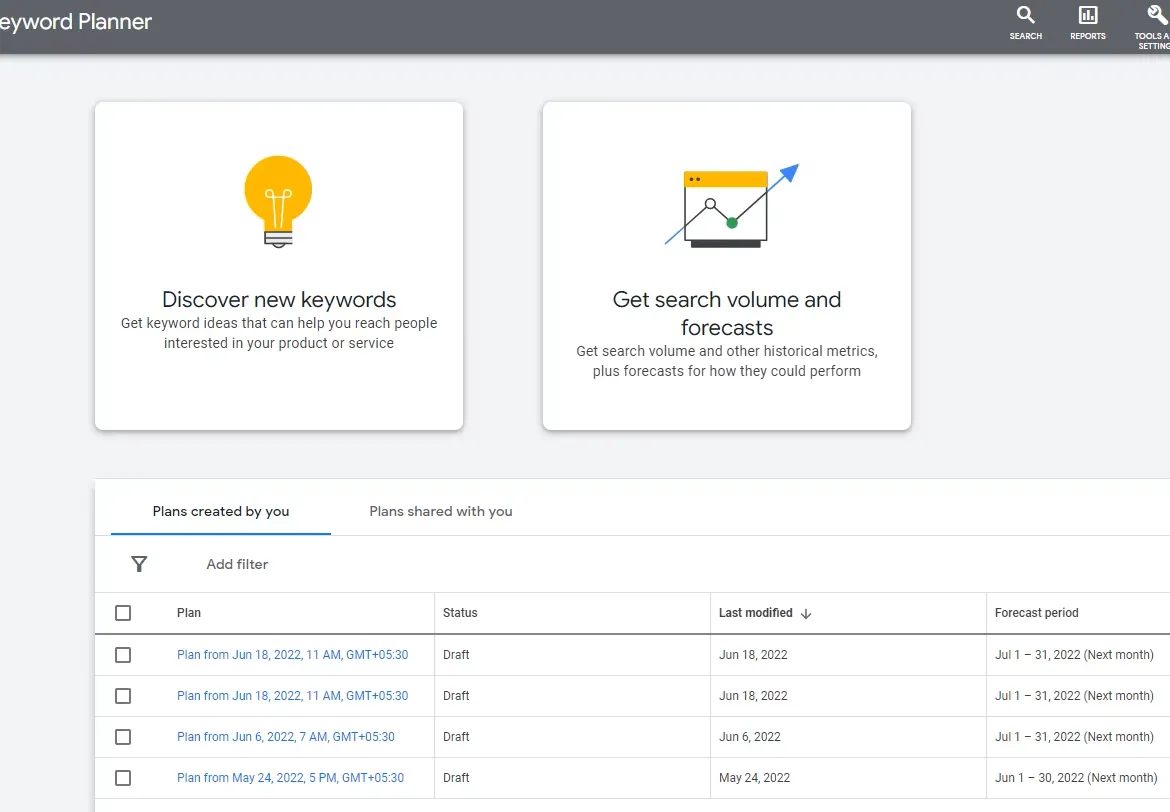
Table of content:
- What is a Google keyword planner?
- Inside Google keyword planner?
- How to use Google keyword planner?
- 3 Examples of different industries (How to do Keyword Research)
- How Google Keyword planner can help you?
- Why Google Keyword planner is best?
- Google keyword planner sum up.
- FAQ's
1. What is Google Keyword Planner?
Google AdWords keyword planner AKA Google keyword planner is a tool beneficial in analyzing and searching keywords for paid campaigns.
Although it helps in getting insights related to SEO, is least accurate in analyzing organic keywords for SEO. As it is primarily focused on and integrated into google ads for analyzing the data, keywords, search volume, bidding value, and competition for paid campaigns.
Google keyword planner is a user-friendly handy easy to use tool for beginners that allows you to discover keywords related to your niche/business and see the additional details including-
- A) Average monthly searches.
- B) Three months variation in search.
- C) YOY change (Compares the monthly search volume of the latest month with the same month of the previous year).
- D) Competition.
- E) Top of page bid (low range).
- F) Top of page bid (high range).
It gives you the option of discovering new keywords by typing the keyword or entering the website URL to fetch similar and relevant keywords.

Google keyword planner provides you with the suggested bid estimates for each and every keyword, so you can determine your advertising budget for google ads also known as Google AdWords.
2. Inside Google Adwords Keyword Planner
Log in to Google ads and follow the steps to access the Google keyword planner.
Note- If your account is new or you have just created your account, you have to create your first campaign to access the keyword planner.
Step 1. Log in to Google ads
Step 2. Create your first campaign
Step 3. Navigate to tools and setting
Step 4. Go to planning menu
Step 5. Click on the keyword planner
Here you are in Google keyword planner!
Now you have 2 options for moving further by keyword planner.

1) Discover new keywords
2) Get search volume and forecasts
Discover new Keywords
A) Start with keywords.
(Enter your keywords related to products/services)
PS: Try not to be too much specific or general.
For example: "Google ads expert" is better than "Google ads expert for a travel agency in Ladakh"
B) Start with a website.
(Enter the URL of your website or a webpage to find similar keywords that match your website)
PS: For better results- Use a website as a source of keywords.
Once you are done with your keyword research you may select your keywords and add them to a plan. To use them for the ad campaign or to study and keep them all together in a place. (At the end I will be sharing a video on how to do keyword research)
Get search volume and forecasts
Enter your keywords or upload your keyword file and you will get data related to search volume, historical plus, and forecasts for how they may perform.
The major difference between Discover new keywords and Get search volume and forecasts in google keyword planner is:-
Getting search volume and forecasts give you the data regarding your keywords whereas discovering new keywords gives you the data regarding keywords and gives you the additional similar and relevant keywords for your research and ad campaigns giving you helpful insights.
3. How to use Google keyword planner?
Google keyword planner is easy to navigate tool giving you the access to search and explore new keywords related to your business.
There are easy steps to using the Google AdWords keyword planner.
Step 1 - Go to keywords planner in google ads.
Step 2- Search your keywords
Step 3- Get metrics and insights related to your keyword including,
1. Average monthly searches.
2. Three months variation in search.
3. YOY change (Compares the monthly search volume of the latest month with the same month of the previous year).
4. Competition.
5. Top of page bid (low range).
6. Top of page bid (high range).
Recent Comments (0)
No comments yet. Be the first to share your thoughts.
Leave a Comment
Frequently Asked Questions
Find quick answers to common questions related to this article.